Golforg — User guide
Organise golf tournaments from your iPhone or iPad: players, courses, draw, score cards, scanning and rankings — all on your device.
Guide for Golforg 1.2 · iPhone, iPad and Mac (iOS 17 or later) and Android (11 or later)
1 What is Golforg?
Golforg helps an organiser run golf tournaments of one or several days. You enter your players and courses, set the schedule, draw the groups, print score cards, then enter the scores — with buttons, or by scanning the pencil-filled cards. Rankings update by themselves and can be exported as a PDF.
Everything stays on your device (iPhone, iPad or Mac). There is no account, no server and no internet connection needed on the course. The flip side: you are responsible for your backups (see “Backup and restore”).
Players or markers can also enter the scores of their group on their own phone with the companion app Golfscore: it scans the QR code of the card and shows a QR code of the results that you import in Golforg (see “Golfscore: scores entered by the players”).
- Stroke play: gross and net rankings, plus a putts ranking.
- Stableford: points per hole, net and gross.
- Shamble and Scramble: team formats, ranked by group and day, with an overall ranking.
2 Quick start
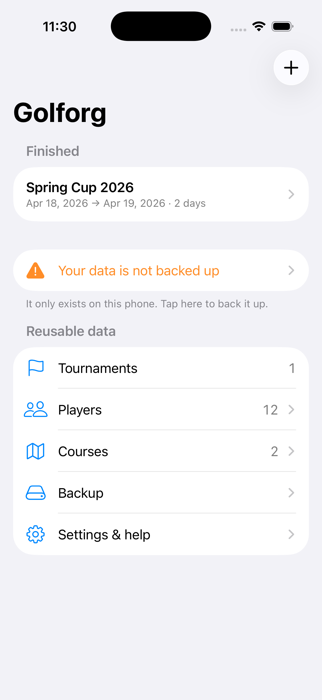
- Add your players (Home → Players).
- Add your courses with pars and indexes (Home → Courses).
- Create a tournament with the + button.
- Register the players and set the schedule: a course and a format for each day.
- Draw the groups and print the score cards.
- Enter the scores with the buttons, or scan the cards.
- Read the rankings and export them as a PDF.
- Back up your data (Home → Backup).
3 Players
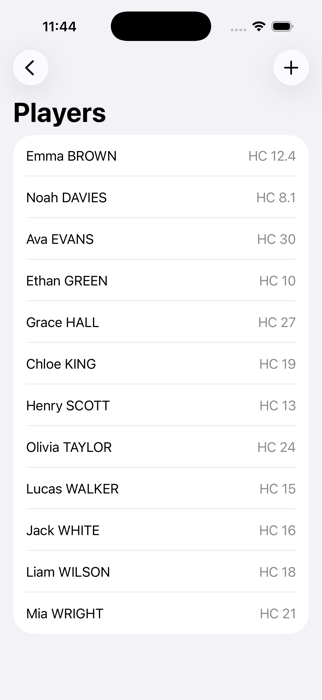
Home → Players → +. A player has a first name, a last name and a handicap from 0 to 54 (decimals allowed). Names are shown as “First LAST”.
To enter many players at once, use Import a list: one line per player, First LAST ; handicap, for example John SMITH ; 13 or John ; Smith ; 13. A player who already exists (same name) just gets the new handicap.
4 Courses
Home → Courses → +. Give the course a name (and a country if you like), then set for each of the 18 holes its par (3 to 5) and its index (1 to 18, each used once).
5 Create a tournament
Home → +. Enter a name and the number of days (1 to 14). You can set the first day: the days are then consecutive. A rest day can be added afterwards.
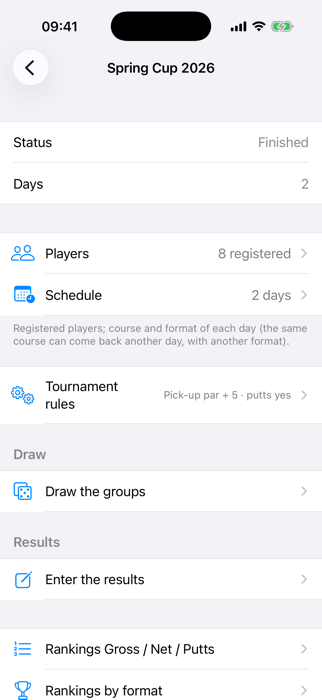
The tournament sheet gathers everything: Players, Schedule (days, courses, dates), Tournament rules, Draw the groups, Enter the results, the Rankings and the PDF export. At the bottom, “Erase all scores” (handy after a trial run) and “Delete this tournament” both ask you to copy a code.
6 Players and schedule
Players: tick the players who take part. Schedule: for each day, add a course and a format (Stroke play, Stableford, Shamble or Scramble). The same course can come back another day with another format.
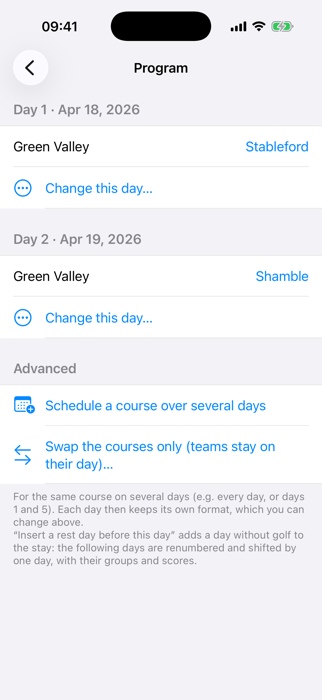
- Change this day… (button on each day) gathers what you can do with a day: replace its course, add a course or a rest day, change its date, insert a rest day before it, or make a rest day play golf again.
- Cancel this day (rest): bad weather? The golf day becomes a rest day and its draw is deleted. Not possible once scores exist.
- Swap with another day…: exchanges two days (golf or rest) with their groups: the draw follows the day. The dates stay where they are. Not possible once scores exist.
- Replace the course of a day…: the groups, the players and the format stay, only the course changes. Handy for a 27-hole course whose two 9-hole loops are only known at the last minute: create one 18-hole course per combination, schedule the likely one, and switch on the day. The cards already printed for that day must be printed again.
- Change the date… moves a day; with “Also shift the following days”, the rest of the stay moves too. Insert a rest day before this day adds a day to the stay.
- Advanced: schedule the same course over several days in one go, or swap only the courses of two days (the groups stay on their day).
7 Tournament rules
- Picked-up ball: a player who picks up scores par + N on the hole in gross and net (5 by default), 0 points in Stableford. In team formats (shamble, scramble) a picked-up score only counts if the others have none.
- Count putts: when on, entering a hole asks for strokes and putts, and the Putts ranking is available. When off, only strokes are asked.
8 Formats and scoring
- Net = strokes minus the strokes received. A player receives their handicap (rounded) spread over the holes: a handicap of 20 gives 1 stroke on every hole plus a second one on the 2 holes with the lowest indexes (1 and 2).
- Stableford (against par, net or gross): par 2 points, bogey 1, double bogey or worse 0, birdie 3, eagle 4, albatross 5. A picked-up ball scores 0.
- Shamble: for each hole the group's best net counts. Scramble: the group's best gross counts. Rankings are given per group and per day, and overall per player.
- Ranks: equal totals share a rank (1, 1, 3). A partial total (holes not all played) can only be compared at an equal number of holes.
9 Draw the groups
Tournament → Draw the groups. Choose the days (or all days at once) and the number of players per group (2 to 6), then Propose a draw. A day without a course in the schedule is skipped (the app says so). The Check section lists the constraints that are not met. Tap a player, then another one on the same day, to swap them. Choose a course for each day if needed, then Validate and create the groups.
Draw constraints guide the draw: do not replay with the same partners, balance handicaps, separate or keep together some players, fix a player in a group, mark a player as unavailable. Each one is strict or a preference with a weight from 1 to 10.
Redo or cancel an existing draw: the app shows a number you must copy (valid 5 minutes). It is not possible once scores exist: erase them first.
Partial draw (absent players): a player drops out at the last minute? Choose the day, tick the absent players, then keep the other groups (only the groups that lose players are redone, the other groups and their cards do not change) or redo the whole day. Nothing changes until you validate.
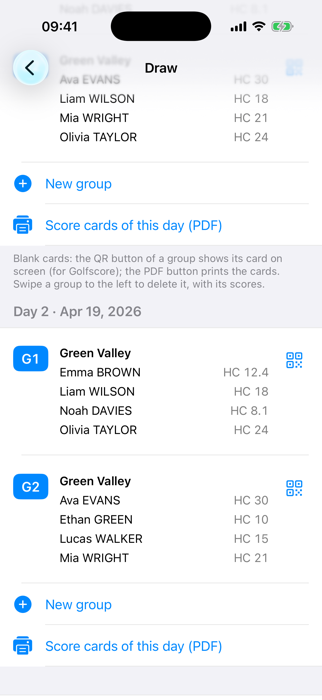
Groups and blank cards: below the draw you see the groups of each day with their players and handicaps. The QR button of a group shows its card on screen (for Golfscore, no printing needed); Score cards of this day (PDF) prints the cards; New group creates a group by hand; swipe a group to the left to delete it (with its scores).
10 Score cards and entering scores
In the Draw screen, Score cards to print (PDF) produces one A4 landscape page per group, with the course, the players and a QR code. Print at 100 % (not “fit to page”) and keep the 4 black squares in the corners clear.
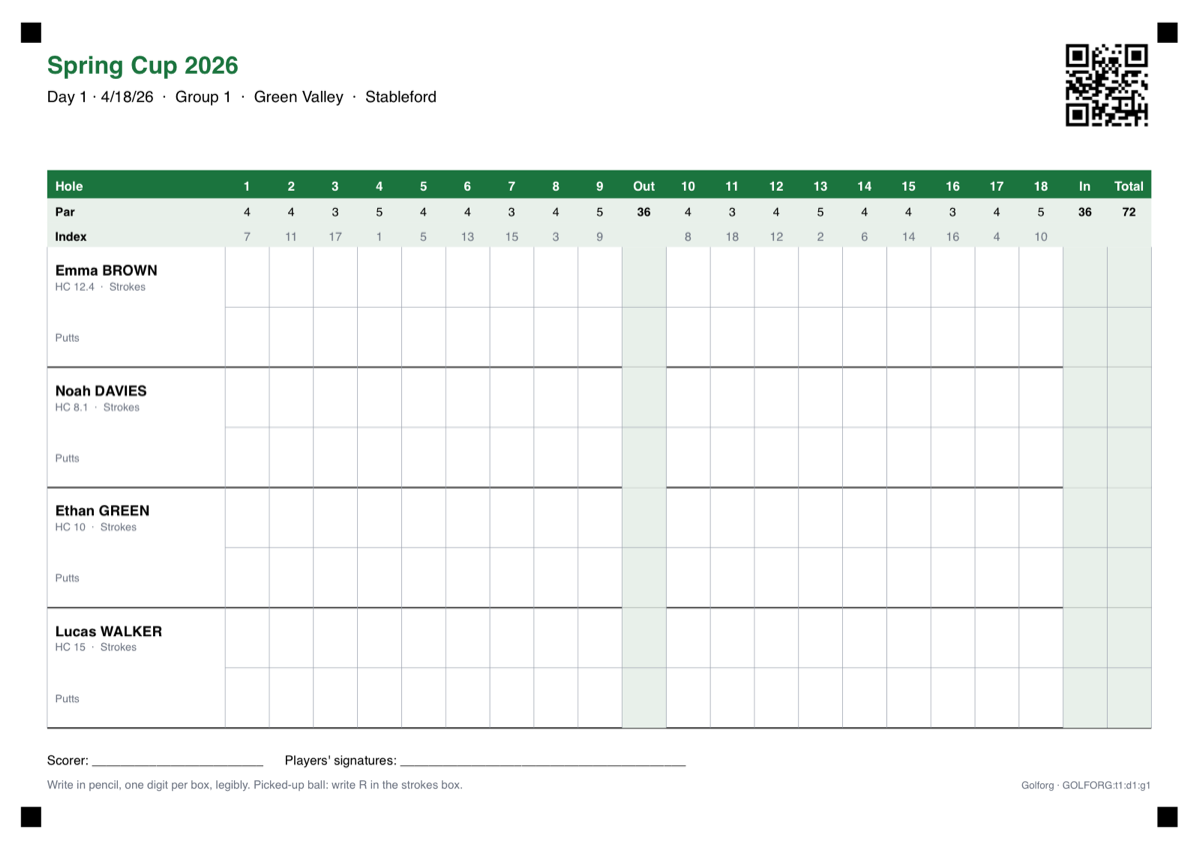
Players fill in the card in pencil, one digit per box, legibly. For a picked-up ball, write R in the strokes box.
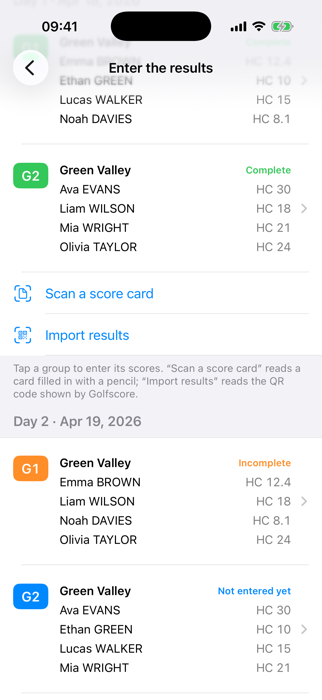
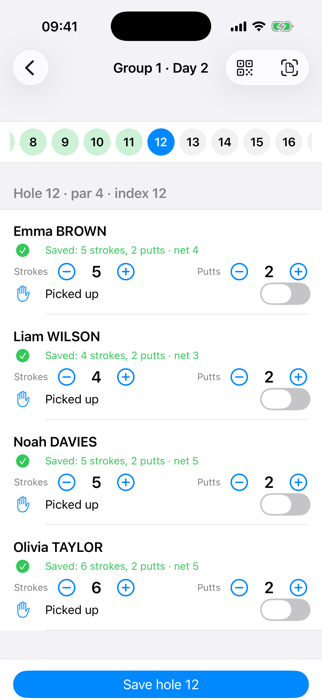
Enter the results: Tournament → Enter the results lists the groups of each day. The badge of a group tells where it stands: green = complete card, orange = incomplete, blue = nothing entered yet. Tap a group: the holes are shown on top; use − and + for strokes and putts, switch on “Picked up” if needed, then Save hole. The saved line shows the net and the Stableford points. You can erase a hole for the group, or swipe a player to erase their score.
By scanning: Enter the results → Scan a score card (or the scan button in a group). Photograph the whole page, flat and well lit, with the QR code and the 4 black squares visible. The app reads the digits on the device. Cells it is unsure about appear in orange or red: correct them (you can show only the holes to check), then Save the scores.
By importing results: Enter the results → Import results. The scorer shows the results QR code of Golfscore; scan it with the camera (or choose a photo of it). The app checks that it belongs to the right tournament, day and group, then shows the same review screen: nothing is saved before you validate.
11 Golfscore: scores entered by the players
Golfscore is a free companion app for the players of a group: one of them (the scorer) scans the QR code of the card (printed, or shown by Golforg with the QR button of the group), enters the strokes and putts hole by hole, then shows a results QR code that you import in Golforg. No account, no network: everything goes through the QR codes.
Golfscore also shows the live count of the day's format, and can produce a PDF of the filled score sheet. Its own guide: Golfscore user guide.
12 Rankings and PDF
Rankings Gross / Net / Putts add up all the days. Rankings by format (Stableford, shamble, scramble) can be limited to some courses, days or formats; use Generate from the formats to create the usual ones, or + to create your own (including a custom Stableford scale).
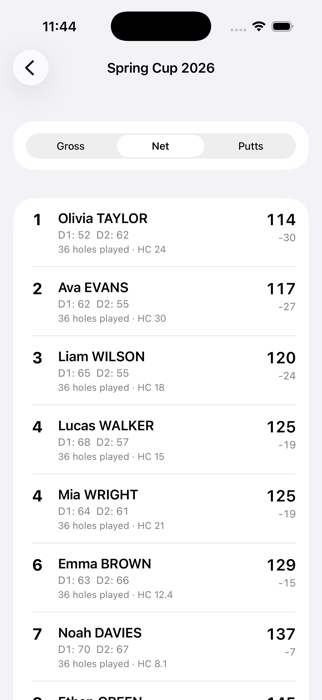
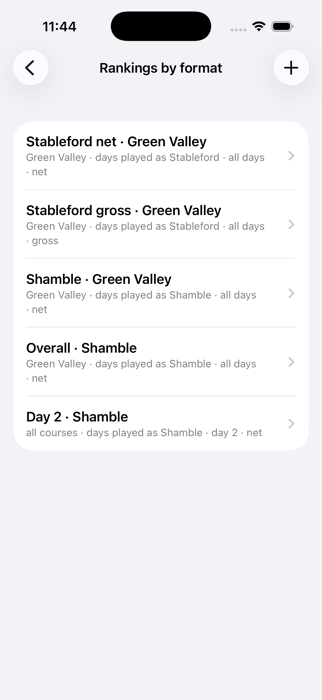
Export as PDF: tick the rankings you want, generate the PDF and share it (mail, messages, AirPrint…).
13 Backup and restore
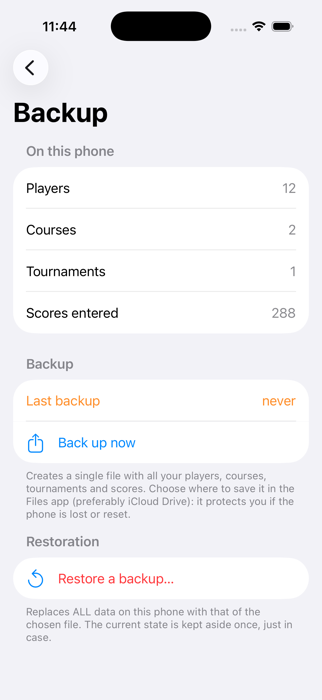
Your data exists only on this phone. Back it up regularly: Home → Backup → Back up now, then choose where to save the file in the Files app (preferably iCloud Drive). A reminder appears on the home screen if you have not backed up for a week.
To restore (new phone, or after a problem): Backup → Restore a backup…, pick the file. The app shows what it contains and replaces all the data of the phone; the previous state is kept aside once, just in case.
14 Language, support and privacy
Home → Settings & help: choose the language (English, French, German, Spanish, Italian, Portuguese, Simplified Chinese, Russian; by default the phone's language), contact support (the mail includes technical details but never names), see the diagnostic log, open this guide or the privacy policy.
Golforg does not collect any data. Read the privacy policy.
15 Troubleshooting
| Problem | Likely cause | What to do |
|---|---|---|
| The scanner does not find the QR code or the corner squares | The page is not entirely in the photo, or is blurred or dark | Photograph the whole page, flat, in good light, corners included |
| Some digits are read wrongly | Light pencil or unclear handwriting | Correct the orange/red cells in the review; next time write darker, one digit per box |
| “This card belongs to another tournament / day / group” | Wrong sheet, or scanning from the wrong day | Open the right day and group, or take the right card |
| I cannot redo or cancel the draw | Scores already exist | Erase the scores first (a hole, or “Erase all scores”) |
| A format has no ranking | The ranking was not created yet | Rankings by format → Generate from the formats |
| My data is gone (new phone, reinstall) | The data lives only on the phone | Backup → Restore a backup… with your last file |
| Putts are asked but I do not count them | “Count putts” is on | Tournament rules → switch off Count putts |
| A day has no groups after the draw | The day has no course in the schedule, so it was skipped | Schedule → add a course to that day, then propose the draw again |